8. Changing Quantities and Deleting Foods
For the Do, Learn, Improve, Record cycle described in lesson 1 to be
practical, you must be able to quickly access nutrition information for
an individual food you have already selected and be able to change the
quantity of that food (or even get rid of it).
Objectives
After this lesson, you will be able to:
- Select a food in your food list you wish to revise
- Get nutrition information about the selected food
- Change the quantity of the selected food
- Delete the food from the food list
Lesson
To practise the actions described in this lesson, you should start FoodFocus
and set it up so that you can see this tutorial screen on the left half
of your monitor and FoodFocus on the right half as described in lesson
5. Be sure you have selected a few foods as described in lessons 5,
6 or 7 so that you have a
food list to practise with.
- Selecting a Food from the Food List- Using
the mouse, click on a specific food from the list of foods you have already
selected (see lesson 1b) (or use the up/down arrows). A food is selected
when its name is highlighted in blue. Pick that food by double-clicking
on it with the left mouse button (or press the ENTER key).
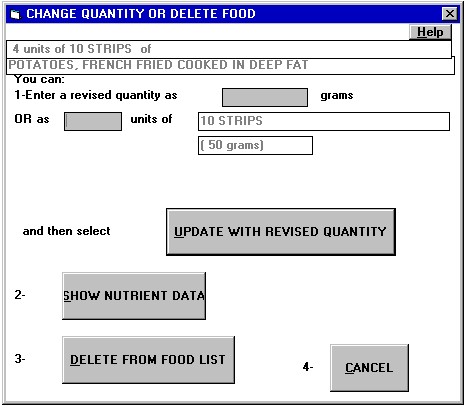
This will display a Change Quantity or Delete Food window from
which you can perform the following actions:
- Update with Revise Quantity- From the Change
Quantity or Delete Food window, you can change the quantity of the food you have selected
by pressing the Update With Revised
Quantity button.
- Pressing the Update With Revised Quantity button will take you to a
Revise Quantity for a food already chosen window. Enter the amount of food as
in lesson 6.
Use the Update with Revised Quantity button to return to the food list with
the changed quantity or press the Cancel button to return to the food list without
changing the quantity of the food item you have selected.
- Show Nutrient Data for One Food-
From the Change Quantity or Delete Food window, you can
select data on the specific food listed at the top of this window.
 (In lessons 5, 6 and 7
you learned one approach to viewing nutrient data on one specific food.
This is a second method.) Some differences between the nutrient data displays
in this lesson and those shown in lesson 3:
(In lessons 5, 6 and 7
you learned one approach to viewing nutrient data on one specific food.
This is a second method.) Some differences between the nutrient data displays
in this lesson and those shown in lesson 3:
- The nutrient information is just for one food (listed at the top of
the window) whereas the similar display selected from Analysis on the menu
line applies to all foods in the food list.
- The nutrient information is displayed for the quantity of the food
shown at the top of the window. You may select from a 100 gram quantity
or predefined typical quantities.
Use the Return to Previous Form button to return to the Change
Quantity or Delete Food window.
- Delete the Food- To remove the food described
at the top of the Change Quantity or Delete Food window from the
food list, use the Delete From The Food List button.
Review Topics
- When you view nutrient data for just one food on the food list, is
the data shown for the quantity you chose or for standard quantities of
that food?
- Can you select a food from the food list and delete it using only the
keyboard (no mouse)?
- What are two ways you can choose to see nutrient data for one food?
Independent Practice
Using the capabilites of FoodFocus described in this and previous lessons,
describe how you would compare the amount of fat in whole milk and in 2%
milk.
Coming Next....
How to save a food lists to a file and later load it back in....
Comments to matt@foodfocus.com