5. Choosing Food by Type- Using Food Groups
5. Choosing Food by Type- Using Food Groups
This lesson begins a new section of the tutorial- in addition to using
this tutorial in a browser, you will be asked to run FoodFocus at the same
time. By switching between the tutorial and FoodFocus you will be able
to immediately practise what you have learned. Doing this may be a little
confusing at first so we suggest that you at least read through this lesson
once before you start. You may even want to print a copy (under File|Print
on your browser) for easy reference. For the remaining lessons in this
tutorial it will be useful to run FoodFocus at the same time as you are
doing the tutorial.
Lessons 5, 6 and 7 are similar in that they describe ways to choose
foods. Lesson 5 helps you choose foods by food type.
Objectives
After this lesson, you will be able to:
- Select foods using "Food by Type" on the main menu.
- Identify the number of food groupings used in FoodFocus and the advantages
and disadvantages of using "Food by Type"
Lesson
- Go to FoodFocus. To see both this tutorial and
FoodFocus at the same time, you may want to resize this tutorial window
to occupy the left one-third to one-half of the screen. After you
start the FoodFocus program, you can grab the FoodFocus window and have
it occupy the right part of the screen by clicking on the FoodFocus
Version 3 title line, holding down the left mouse button and dragging
the FoodFocus window to the right. Depending on your screen resolution
and the way you want to work, you may want to have this tutorial screen
and the FoodFocus screen overlap. You can then go from one to the other,
by clicking on the program you want to use or you can hold down the ALT
key and press TAB to get Windows to switch between this tutorial and FoodFocus.
- Using the mouse click on "Food by Type"
on the menu line and you will get a drop down box listing food groups.
Some of the food groups are followed by arrows indicating that they are
subdivided into smaller groupings. Note that:
- You can also press the ALT
key on your keyboard, and then press "T"
(the underlined letter), to do the same thing.
- Especially if you are
using the keyboard rather than the mouse, make sure that the FoodFocus
window is "alive"- the top line "FoodFocus Version 3"
will be blue if it is the active window. If it is grey, use the mouse to
click on that top line. Note that whenever you switch back to the tutorial
window to move along and you then want to go back to the FoodFocus window
to use the keyboard, you may have to click on the FoodFocus window to tell
it where you want your keyboard input to go.
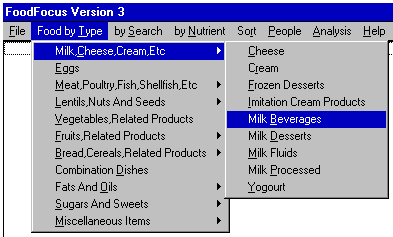
- Using the mouse (or the up/down keys), click (using the left mouse
button) on a food grouping that has smaller groupings such as Milk,
Cheese, Cream, Etc. You will get a drop down
box listing food groups within that larger group.[You can also just
press "C"(the underlined letter).
You do not need the ALT key this time.]
- Using the mouse (or the up/down and left/right arrow keys), select
one of these food groups such as Milk Beverages.
- Using the mouse click on Milk Beverages
(or press the ENTER key) to display a list of foods in that food group.
Remember that:
- You can also press "B"(the underlined
letter). You do not need the ALT key this time.
- If the window for the list of foods gets in the way of this tutorial,
you can grab that window and drag it to the side by clicking on the window
title line, holding down the left mouse button and dragging the
window to the side.
- The bottom left corner of the window, indicates the number of foods
in the list (not shown in this figure).
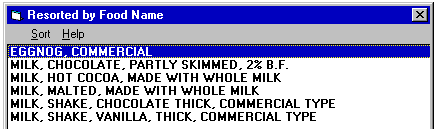
- Using the mouse, click on a specific food (or use
the up/down arrow keys). A food is selected when its name is highlighted
in blue. Pick that food by doubleclicking on it with the left mouse button
(or press the ENTER key). This will display a window in which you can specify
the quantity of the food.
- Enter the quantity of the food. Note that:
- The cursor (small black flashing line) indicates where
numbers you enter will appear. (Use the mouse to click on another field,
if you want to enter data in that field (or use the TAB key).)
- You only have to enter "1"
to indicate one cup of eggnog when you use the 250 ml (1 cup) option.
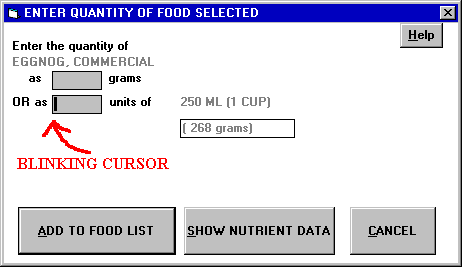
- You can see the nutrient data for that one food by clicking on the
"Show Nutrient Data" button. Lesson 3
described how to see the overall nutrient data for all the foods you have
selected. In this case, you can see data for just one specific food. See
lesson 8 for more information about viewing
nutrient data for one food.
- You add the selected food to the food list by clicking
on the "Add to Food List" button with the mouse. (Usually that
button is outlined with a shadow indicating that it is the button that
will be pressed when you press the ENTER key- in that case, you need only
press ENTER to activate the "Add to Food List" button.)
The list of foods (lesson 1b), the summary description
(lesson 1c) and the pictographs (lesson
2) update to reflect this food. In order to see the full FoodFocus
screen, you may have to drag the FoodFocus window to the left.
Review Topics
- How many groups of foods are used to group foods "by Type"?
- Which food group has the largest number of foods?
- How can you see the nutrient information for one food?
- Using the keyboard only (absolutely no mouse movements or clicks),
how many keystrokes are needed to chose one cup of 1% milk?
- In what food group would you find moose and beaver?
Independent Practice
Select other foods using the "Food by Type" approach
with only keyboard commands. When would selecting foods by type
be most and least useful?
Coming Next....
Choosing foods by searching using keywords in the names of foods. For
example, find Cheerios in an "oat cereal" group or find Cheerios
directly.
Comments to matt@foodfocus.com
© 1999 FoodFocus
Revised - January 2001
Chad Prowse