6. Choosing Food by Search- Using Keywords
One easy way to choose foods is by using the names of foods or parts
of food names.
Objectives
After this lesson, you will be able to:
- Select foods using "Food by Search" on the main menu.
- Deal with long lists of foods.
Lesson
- Go to FoodFocus. To see both this tutorial and FoodFocus at the same
time or to review how you can switch between this tutorial and FoodFocus,
see the description in lesson 5.

- Using the mouse click on "by Search"
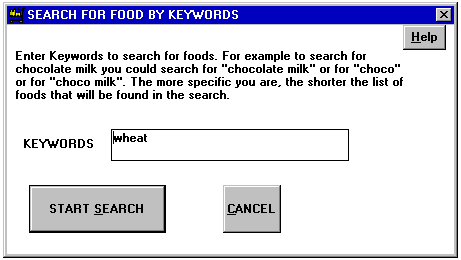
on the menu line and you will get a window where you can enter the keywords
to use. Note that:
- You can also press the ALT key on your keyboard, and then press "S"(the
underlined letter), to do the same thing.
- If the search window gets in the way of this tutorial, you can grab
that window and drag it to the side by clicking on the window title line"Search
for Foods By Keywords", holding down the left mouse button
and dragging the window to the side.
- Enter words or parts of words in the name of foods in which you are
interested. Note that:
- The cursor (small black flashing line)shows you if the letters you
type will appear in the "Keywords"box. (Use the mouse to click
in the "Keywords" box if necessary.)
- You can use up to three words or parts of words. The figure shows use
of "wheat" as a keyword.
- You start the search by clicking on the "Start Search"
button with the mouse. Note that:
- The button that is outlined with a shadow indicates the button that
will be "pressed" when you press the ENTER key- in that case,
you need only press ENTER to activate the "Start Search"
button.
- You can also press the ALT key on your keyboard and the underlined
letter "S" at the same time,
to do the same thing.
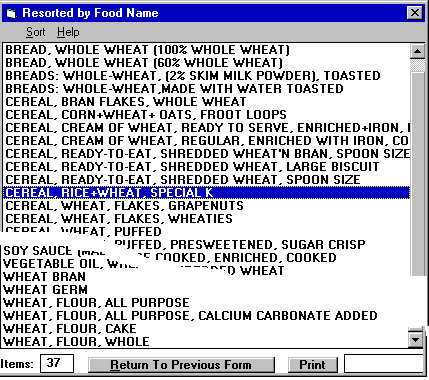
- Searches may result in lists of foods that are
longer than the window can display at once. Note that:
- The lower left hand corner indicates the number of foods selected by
that search.
- You can use the scroll bar or "elevator" at the right of
the window to see your position in the list and to move up and down in
that list.
- You can use the up/down arrow keys to scroll through the list.
- You can also move by clicking on the up arrow shown on the top of the
scroll bar or elevator or the down arrow at the bottom.
- You can also grab the "elevator" and drag it up or down to
move quickly through the list (by clicking on the elevator with the mouse
and holding down on the left mouse).
- Using the mouse, click on a specific food (or use the up/down arrow
keys). A food is selected when its name is highlighted in blue. Pick that
food by doubleclicking on it with the left mouse button (or press the ENTER
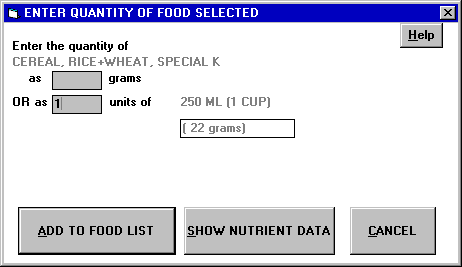
key). This will display a window in which you can specify the quantity
of the food. The example shown selects Special K cereal.
- Enter the quantity of the food. Note that:
- The cursor (small black flashing line) shows you where numbers you
enter will appear. (Use the mouse to click on another field, if you want
to enter data in that field (or use the TAB key).)
- You only have to enter "1" to indicate one cup of cereal
when you use the 250 ml (1 cup) option.
- You can see the nutrient data for that one food
by clicking on the "Show Nutrient Data" button. Lesson
3 described how to see the overall nutrient data for all the foods
you have selected. In this case, you can see data for just one specific
food. See lesson 8 for more information about
viewing nutrient data for one food.
- You add the selected food to the food list by clicking on the "Add
to Food List" button with the mouse. (Usually that button is outlined
with a shadow indicating that it is the button that will be pressed when
you press the ENTER key- in that case, you need only press ENTER to activate
the "Add to Food List" button.)
The list of foods (lesson 1b), the summary description
(lesson 1c)and the pictographs (lesson
2) update to reflect this food and you can see the detailed analysis
results (lesson 3).
Review Topics
- How many words or parts of words can you use in a search?
- When you display a list of foods how can you tell how many foods are
in that list?
- How can you view all the foods in a long list?
- Using the keyboard only (absolutely no mouse movements or clicks),
how many keystrokes are needed to chose one cup of Cheerios using the search
approach (not counting the keywords used)?
- When would selecting foods by type be most useful?
Independent Practice
Select Cheerios using a search with keywords "oat cereal".
Select Cheerios using a search with keyword "Cheerios". Find
another food using the "by Search" approach, using only
keyboard commands. If you wanted to find french fries, what happens if
you search using "french fries", using "french fried potato"
or using "french"?
Coming Next....
Choosing foods by nutrient content- finding foods that are good sources
of a particular nutrient. For example, find the top animal and vegetable
sources of folate or compare the amount of Vitamin C in the best vegetable
sources with that in a raw orange.
Comments to matt@foodfocus.com