9. Files- Saving and Reloading Food Lists
The foods you have chosen can be saved in a file and reloaded into FoodFocus
later. You can also use this to start work with a list of foods (like a
grocery list or a recipe) that has been created previously.
Objectives
After this lesson, you will be able to:
- Save a list of foods you have selectd to a file
- Load a list of foods back into FoodFocus
- Understand how comments can be used in saving and reloading food lists
Lesson
If you have even a little experience using files, you'll probably find
this to be a simple lesson. (To practise saving and loading food lists,
start FoodFocus and set it up so that you can see this tutorial screen
on the left half of your monitor and FoodFocus on the right half as described
in lesson 5. Be sure you have selected a few foods
as described in lessons 5, 6
or 7 so that you have a food list to practise with.)
Besides the basic mechanics of saving and reloading, there are only four
minor points to note. 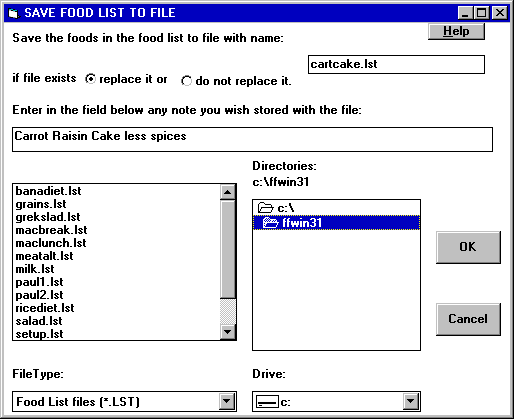
- Saving a Food List to a File- Use the Save
to File option under File on the menu line to save the current
food list. Initially FoodFocus will display the files in a specific location
(which you can modify but that is beyond the scope of this tutorial). You
can select different disks and directories by clicking in the Drive
and Directories boxes. When you have selected the location where
you want to save the file, enter a file name (up to 8 characters with no
blanks). (You can either add the file extension ".lst" to indicate
it is food list file or FoodFocus will add it for you.)Click on "OK"
to save to the file.
The first minor point to note is:
- You should enter comments to accompany the file.
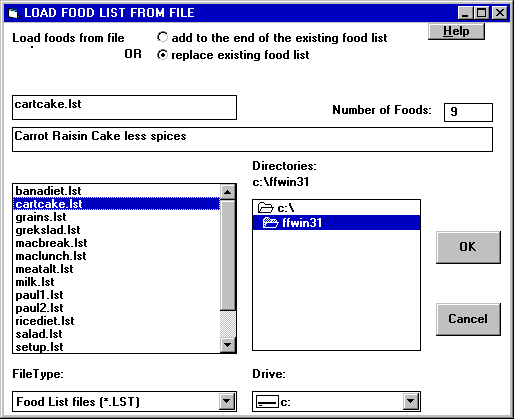
- Loading a Food List From a File-Loading
foods from a file is just like saving them (except you use the Load
from File option under File on the menu line). The Drive
and Directories boxes work the same way.
Three more points to note are:
- If you click (not double-click) on a file name (or use the up/down
arrow) to highlight different file names, you will see the number of foods
in that file as well as the comments that were stored with it.
- You have to indicate whether you want the foods in the file to be added
to your existing food list (on the main screen) or whether the foods are
to replace the existing list. Make sure that the appropriate option is
selected at the top of the loading file window.Click on "OK"
to load the file.
- When you load a file, the comments stored with the file are displayed
at the bottom line of the main screen. That gives you longer access to
those comments.
Review Topics
- How could a teacher review a food list prepared by a student and then
pass instructions back to the student about further work on the assignment?
- Can you add foods from a food list file to the end of the list of foods
you have currently selected?
- How could you keep food records for seven days separate so they can
be analyzed as individual days and also as a single seven day record?
Independent Practice
Plan an exercise which starts with an food list.
Coming Next....
Printing
Comments to matt@foodfocus.com