1. The Main Screen
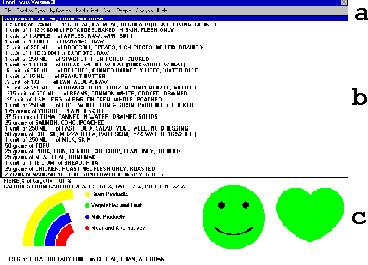 The
FoodFocus main screen consists of three main parts:
The
FoodFocus main screen consists of three main parts:
- the menu line that allows you to control the program (details in lesson
1a)
- a center portion which lists the foods that have been selected (details
in lesson 1b) and
- a bottom portion which summarizes the nutrient analysis for those foods
(details in lesson 1c).
Objectives
After this lesson, which is subdivided into three sections, you will
be able to:
- Understand the Do, Learn, Improve, Record cycle for which FoodFocus
was designed.
- Identify the groups of commands you can perform from the menu line.
- Understand how typical nutrition inquiries- selecting foods, sorting
foods, viewing analysis results relate to the available commands.
- Understand how nutrient analysis results are displayed in summary form.
Lesson
This lesson and lessons 1a, 1b, 1c illustrate the basic layout of the
FoodFocus main screen. These lessons are intended to provide an overview
of how FoodFocus can be used and its objectives. This introductory portion
of lesson 1 indicates the process by which FoodFocus is intended to be
used. In brief, it discusses the Do, Learn, Improve, Record cycle.
FoodFocus was designed to be allow you to do a quick analysis and then
try out a variety of nutrition alternatives. We believe that learning is
most effective when you can easily try out ideas and get almost instant
feedback. A typical cycle is:
- Do
- Think of a Food or a Group of Foods
- Select a Group of Foods That Include That Food- In most cases you will
use FoodFocus to select a group of foods. You can easily select a group
of foods by food type (See how to choose all foods that are "Milk
Beverages" in Lesson 5.), by name (See how
to select all foods with "burger" in the name in Lesson
6.) or by nutrient content (See how to select all foods that are a
good source of fibre in Lesson 7.).
- Pick One Food-(Lesson 5 shows you how to select
one specific food.)
- Decide on How Much of That Food-(Lesson 5 shows
you how to enter the amount of the food.)
- Identify The People and Time Period for the Analysis- You can skip
this part and use the default of one adult female for a one day period
or you can identify other individuals or groups and other time periods
as described in lesson 13. You can quickly evaluate
a food recall for different conditions- "How would the adequacy of
your diet change if you were pregnant?"
- Learn
- View Nutrient Analysis Summary- Information at the bottom of the main
screen (described in lesson 1c and in lesson
2) provides a quick overview of the nutrient analysis.
- View Nutrient Analysis Details- The detailed nutrient analysis results
(described in lesson 3) provide nutrient information
in scientific units as well as comparing the nutrients in the foods to
nutrient recommendations.
- Improve
- Sort by Nutrient Content- The sort capability allows you to order foods
according to any nutrient and to easily see how much of that nutrient is
in each food. That helps you answer questions like "Where is the fat
(or Vitamin C or sodium or...) in my diet?" You can even use a "by
Need" sort which considers many nutrients at once and helps answer
questions like "What foods most (and least) help meet nutrient guidelines?".
Details in lesson 12.
- Change Quantities or Delete Foods- After you sort foods and determine
what foods you want more or less of, you may wish to change the amount
of foods you have already selected. You may even want to get rid of a food
entirely. Details in lesson 8.
- Find Other Foods With Specific Nutrient Objectives- Based on nutrient
feedback, you may wish to add foods that meet more complex nutrition objectives-
perhaps a high fibre breakfast cereal, a good source of Vitamin A which
is also high in fibre, or a beef cut that is low in fat. Details in lesson
11.
- Record
- Printing- You can print the lists of foods you have chosen, the pictograph
images, all the details behind the nutrient analysis calculations, and cost information. Details
in lesson 10.
- Food List Files- You can store lists of foods in disk files or reload
lists of foods stored previously. That makes it easy to continue work or
use a food recall or a recipe as a starting point for an assignment. Details
in lesson 9.
- Spreadsheet Output- When you store a food list, all the data behind
the nutrient analysis calculations are automatically exported in to a file
format compatible with most spreadsheets. That allows your work to be used
for additional calculations, to be graphed or perhaps exported to a word
processor. Details in lesson 9.
Review Topics
- What is the importance of the Improve portion of the cycle described
above?
- If you want to select foods that are a good source of Vitamin A, what
lesson would you refer to?
- If you want to do a nutrient analysis to compare the nutrients in the
groceries purchased for a weekend retreat for twenty thirty year old females
to the Recommended Nutrient Intakes, what lesson would help you enter the
people and set the time period to two days in FoodFocus?
- What lesson would you refer to if you wanted to export data to a spreadsheet?
- How would you find what foods in your diet contribute the most fibre?
- If you want to reload a list of foods that represent a food recall
(or a recipe), what item on the main menu would you use?
Independent Practice
Think of nutrition challenges you can create that concentrate on the
Improve portion of the Do, Learn, Improve, Record cycle.
Coming Next....
The options you can choose from the menu line....
Comments to matt@foodfocus.com